FN-001 — Field note ·
Free business email on your domain: ImprovMX, Resend and Gmail
Free business email on your domain, with nothing to pay beyond it: ImprovMX receives, Resend sends, Gmail replies. The DNS records, steps and checks I use.
If you still answer clients from a personal Gmail address and want mail on your own domain that passes SPF and DKIM, this is the free business email setup I use: ImprovMX receives, Resend sends and Gmail is where I read and reply. It runs email for cedrickato.com and costs nothing beyond the domain.
It suits a solo consultant or small business working from one inbox, not a team that needs separate logins.
How free business email works: three jobs, three free tools
Business email is three jobs, and each can go to a different service:
- Receiving. ImprovMX accepts mail for the domain and forwards it to my personal Gmail.
- Sending. Resend sends mail as the domain, signed with DKIM. The website sends through it, and so does Gmail.
- Reading and replying. Gmail, with contact@ added as a Send-as address, so replies go out from the business address.
ImprovMX can send too, but not on its free plan at the time of writing.
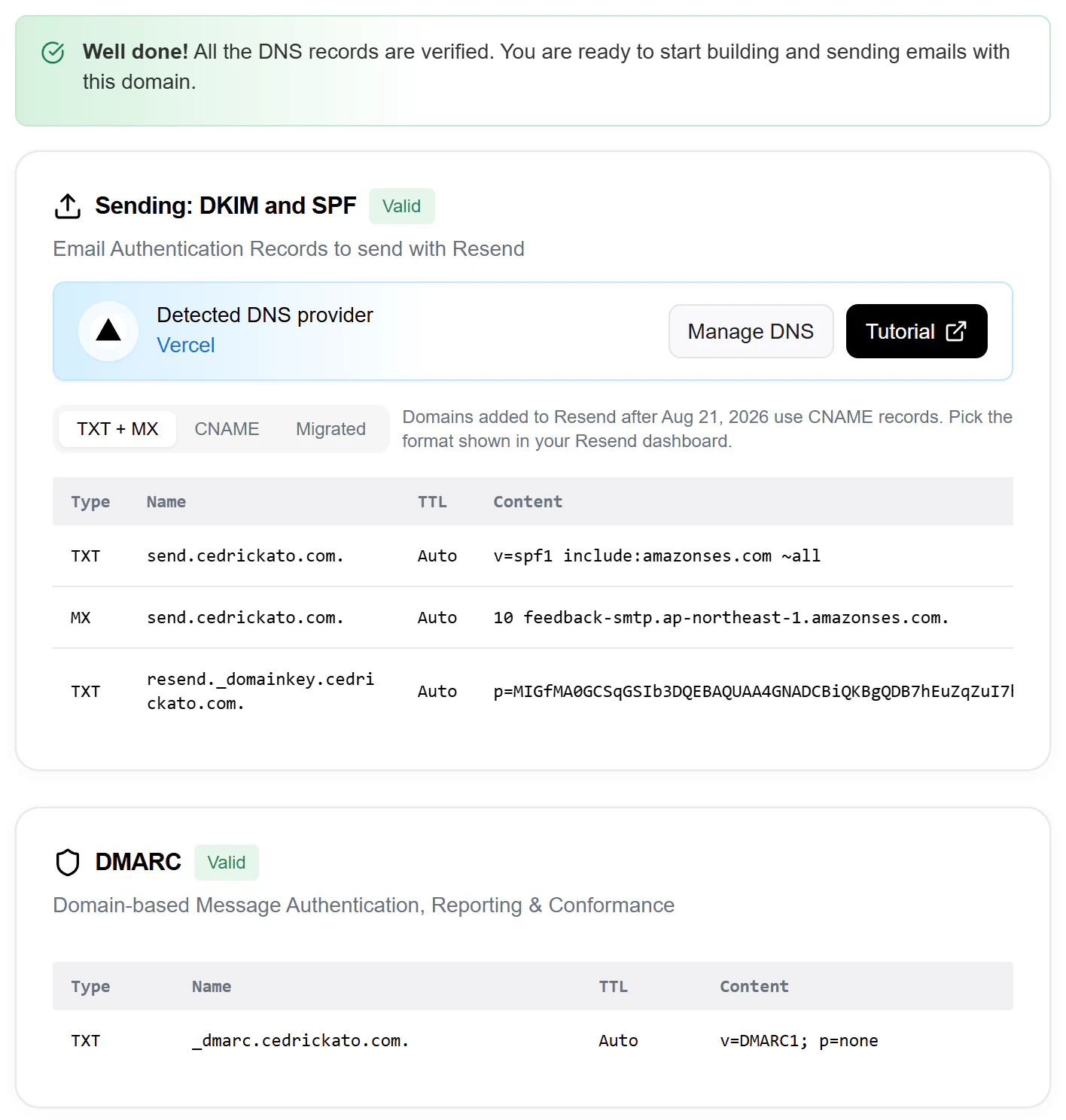
These are the records. Resend's are in the TXT and MX format; step 3 covers the alternative.
| Host | Type | Value | Belongs to |
|---|---|---|---|
@ |
MX | mx1.improvmx.com, priority 10 |
ImprovMX (receiving) |
@ |
MX | mx2.improvmx.com, priority 20 |
ImprovMX (receiving) |
@ |
TXT | v=spf1 include:spf.improvmx.com ~all |
ImprovMX (SPF) |
resend._domainkey |
TXT | The DKIM key Resend gives you | Resend (DKIM) |
send |
MX | feedback-smtp.<region>.amazonses.com |
Resend (bounces) |
send |
TXT | v=spf1 include:amazonses.com ~all |
Resend (SPF) |
_dmarc |
TXT | v=DMARC1; p=none |
DMARC policy |
The detail that makes this work: a hostname can publish only one SPF record, so each service's sits on a different one. ImprovMX's sits at the root, where it handles bounces on forwarded mail; Resend's sits on send, its default Return-Path subdomain.
Set up ImprovMX, Resend and Gmail in seven steps
1. Put DNS where you'll manage it
I moved the domain's nameservers from Namecheap to Vercel DNS because the site already deploys there, and one dashboard is easier to keep right than two. Anywhere you manage well works: the records are the same.
2. Receive with ImprovMX
Add the domain to ImprovMX and point it at the Gmail address you already use. I set up two aliases: contact@ and a catch-all (*) for any other address at the domain. Then add the two MX records and the root SPF record from the table.

3. Send with Resend
Add the domain in Resend and create the records it gives you. Resend suggests verifying a subdomain such as notifications.yourdomain.com, but to send as contact@yourdomain.com you have to verify yourdomain.com itself: the From address must match the verified domain.
My domain, added in September 2026, got the DKIM key plus an MX and a TXT record on send. At the time of writing, Resend says domains created after August 2026 may get CNAME records instead of that pair, so copy exactly what your dashboard shows.
Once Resend verifies the domain, check the public records in Resend's dns.email checker, with your sending region selected.
4. Start DMARC in monitoring mode
Add a TXT record at _dmarc with v=DMARC1; p=none. The p tag tells receivers what to do with mail that uses your domain but fails DMARC. RFC 9989 defines three values:
| Policy | What it asks receivers to do with failing mail |
|---|---|
p=none |
Nothing special: handle it as usual |
p=quarantine |
Treat it as suspicious, often meaning the spam folder |
p=reject |
Refuse it |
Start with p=none while you confirm everything passes, and tighten it once reports look clean. This minimal record doesn't ask for reports, though: add a rua= tag with an address to get them. Mine is still at p=none.
Checkers such as MXToolbox flag
p=noneas a policy that isn't enabled. That's expected while you're monitoring.
5. Reply as contact@ from Gmail
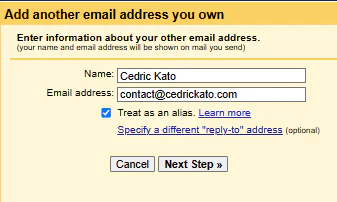
Open Settings → See all settings → Accounts and Import and choose "Add another email address" under "Send mail as". Enter your name and contact@, and leave "Treat as an alias" checked.
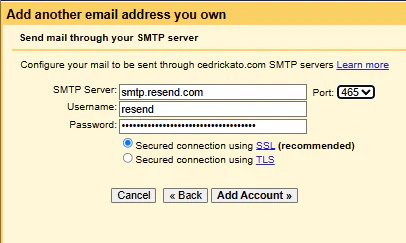
On the next screen, enter the settings from Resend's SMTP docs: server smtp.resend.com, port 465 with SSL, username resend and, as the password, a Resend API key with sending access. Create a dedicated key for Gmail, separate from the website's, so either can be revoked alone.
Gmail then emails a confirmation to contact@, which arrives through ImprovMX: a first test of receiving.
One setting is easy to miss. Under "When replying to a message", select "Reply from the same address the message was sent to". With "Always reply from default address", replies to clients go out from your Gmail address.
6. Send website leads from a different address
The contact form on this site, which I built pairing with Claude Code, is a Next.js server action that emails each lead through Resend from leads@, not contact@. Gmail can keep mail that seems to come from your own Send-as addresses out of the inbox, and a lead is the last message you want to miss.
Each notification sets Reply-To to the visitor, so replying answers them directly. Subjects follow one pattern:
[Lead · GoHighLevel Automation] Jane Doe — Acme Co
The visitor's auto-reply comes from contact@, so if they answer it, the reply comes back through ImprovMX.
7. Filter what arrives
Three Gmail filters keep the inbox organized. Replace yourdomain.com with your own domain:
| Search | What the filter does |
|---|---|
from:leads@yourdomain.com |
Applies the label "Leads", stars it, always marks it as important, never sends it to Spam |
to:yourdomain.com |
Applies a label for the domain |
to:yourdomain.com -to:contact@yourdomain.com -from:leads@yourdomain.com |
Optional: labels stray mail that arrived through the catch-all |
Check SPF, DKIM, DMARC and mail routing
Before trusting the setup with client mail, I run through these:
- Send a test from Gmail as contact@ to another inbox you own. There, check the headers (in Gmail, "Show original") for
spf=pass,dkim=passanddmarc=pass. - From an outside address, email contact@ and a made-up address at the domain. Both should arrive, the second through the catch-all.
- Reply to the message you sent to contact@. The From line should show contact@, not your Gmail address.
- Submit the website form once. The notification should arrive from leads@, in the inbox, labeled and starred.
What it costs, and when to pay instead
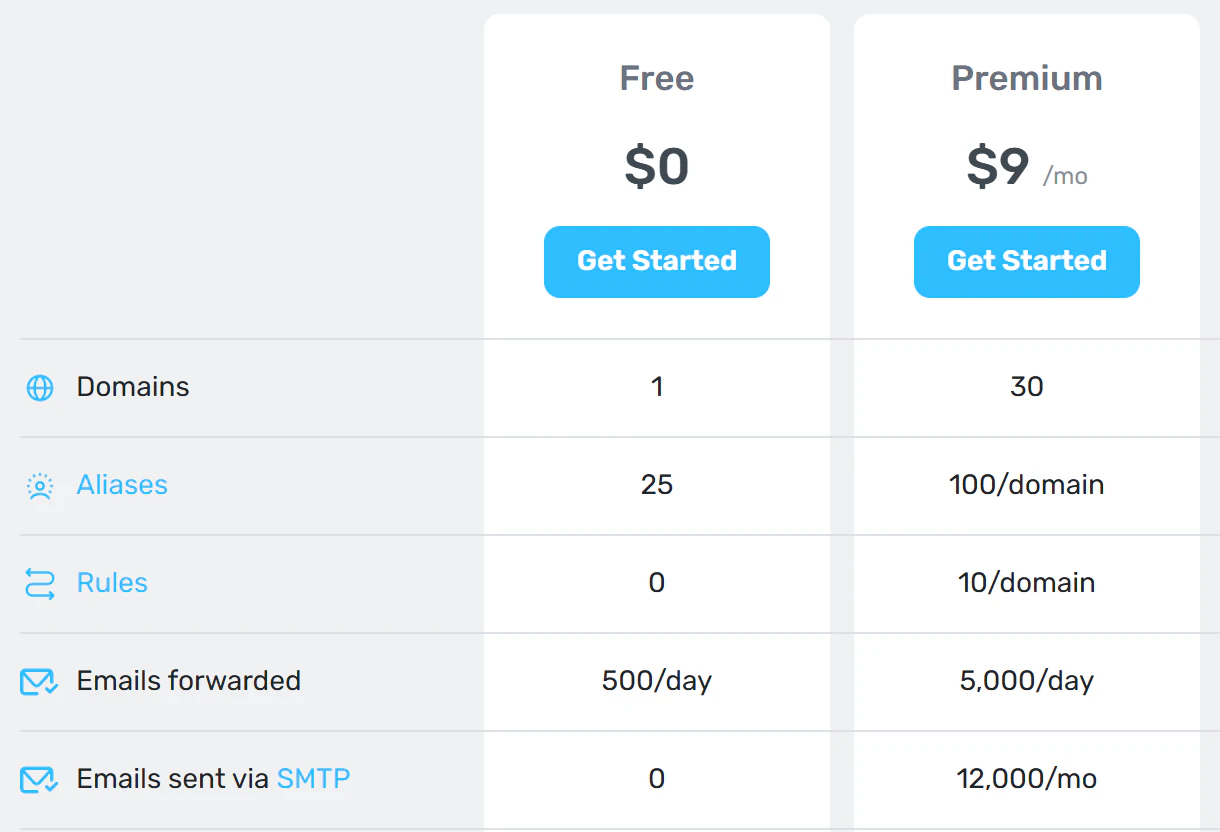
Nothing beyond the domain. The free-plan limits that matter, at the time of writing:
| Service | Free plan | Entry monthly plan |
|---|---|---|
| ImprovMX | 1 domain, 25 aliases, 500 forwards a day, no SMTP sending | Premium, $9 a month |
| Resend | 3,000 emails a month, 100 a day, 3 domains | Pro, $20 a month, no daily limit |
Resend counts its quota per account, and each To, CC or BCC recipient counts as one email. Gmail and the website share the 100 a day, and each lead on this site uses up to two: the notification and the visitor's auto-reply.
Pay for Google Workspace instead when you need a fully separate mailbox rather than a label inside your personal Gmail, or when a teammate needs their own login.
If you want help with this
Email deliverability is one part of a GoHighLevel automation build. It's work I've owned before: as Head of Admin Tech for a US client, I was responsible for SPF, DKIM and DMARC configuration and the sending-domain inventory, plus Resend vs. GoHighLevel sending paths. If your follow-ups are landing in spam, send me a note through the contact form. I'd start by listing everything that sends as your domain.